

Branches & Tracks
Sometimes different volunteers need different training. Camera operators and audio volunteers might share the same first course and then split. A branch handles this. It splits your Flow into tracks, and each volunteer is sent down the track that fits them. Afterwards, everyone comes back together for the rest of the Flow.
Add a branch
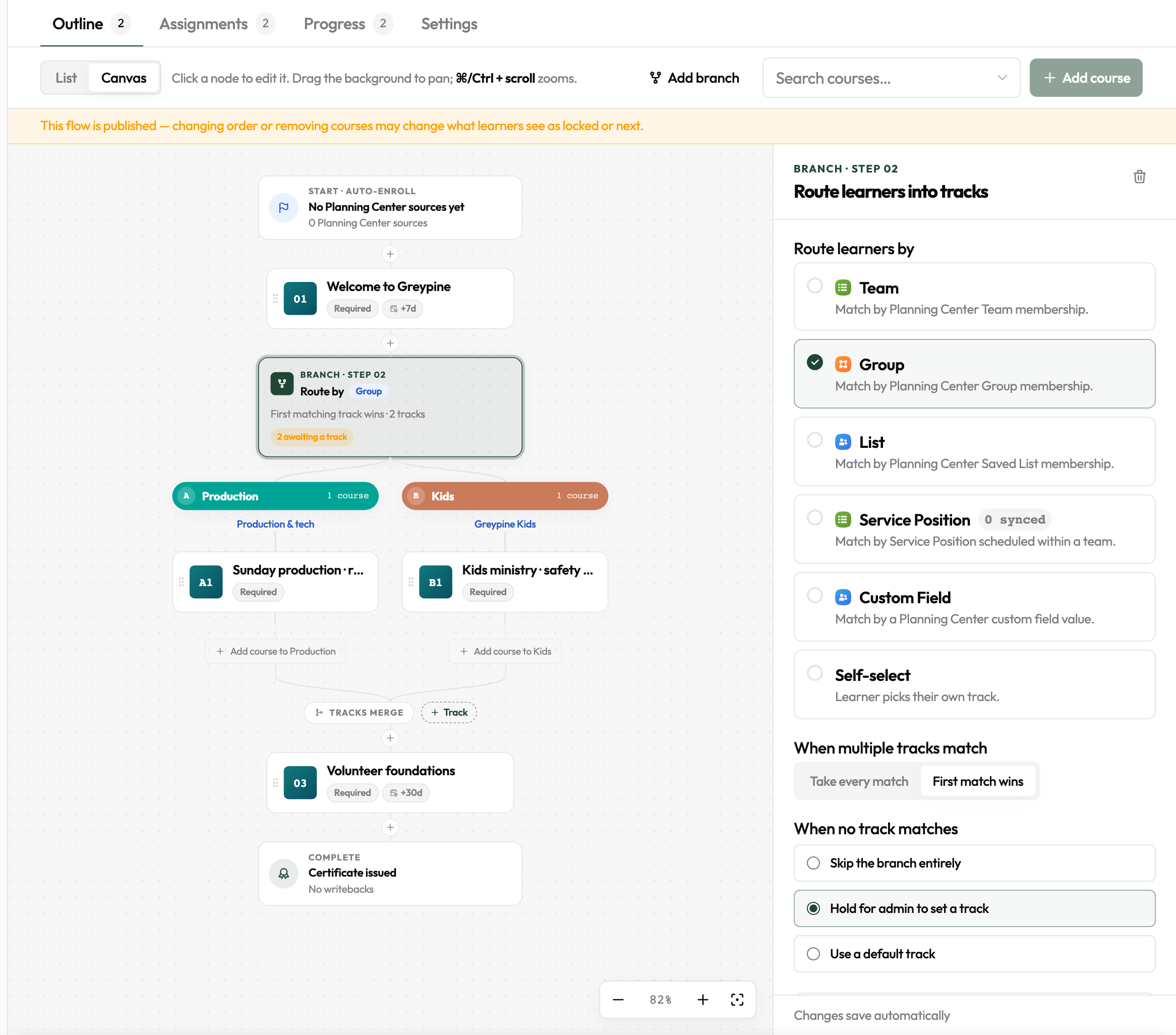
- On the Canvas, click the + on the line where you want the split, then click Insert a branch here.
- Or click Add branch at the top. If a step is selected, the branch goes right after it. Otherwise it goes at the end.
A new branch starts with two tracks, Track A and Track B.
Choose how volunteers are sorted
Click the branch box. Under Route learners by, choose what EquipEngine checks in Planning Center:
- Team, Group, or List: which one the person belongs to.
- Service Position: the position they're scheduled to serve in, such as "Camera" or "Vocals".
- Custom Field: a value on their Planning Center profile.
Set up each track
Click a track's colored label on the Canvas, then fill in:
- Who takes this track: pick the team, position, or value that sends someone here. The box stays highlighted until you choose one.
- Track name: for example, "Camera".
- Add the track's courses with Add course to … under the track, or drag existing courses into it.
Need another track? Click + Track under the branch.
Tip: changing Route learners by clears every track's match, because the old choices no longer apply. Those tracks will say No match rule yet until you set them again.
When someone fits more than one track
Under When multiple tracks match, choose:
- First match wins: they take only the first matching track.
- Take every match: they take all of them.
When someone fits no track
Under When no track matches, choose:
- Skip the branch entirely: they go straight past it.
- Use a default track: they're placed on the track you pick.
- Hold for admin to set a track: they wait until you choose a track for them (see below).
Choose someone's track yourself
If a branch is set to Hold for admin, anyone who fits no track waits. They see "Your team lead will set your track." on their training page, and they can't finish the Flow until you choose a track.
To find and release them:
- Open the Flow's Progress tab. Anyone waiting shows Awaiting track. The branch box on the Canvas also shows how many people are waiting.
- Click Set track next to their name.
- Pick the track. It saves right away and their training continues.
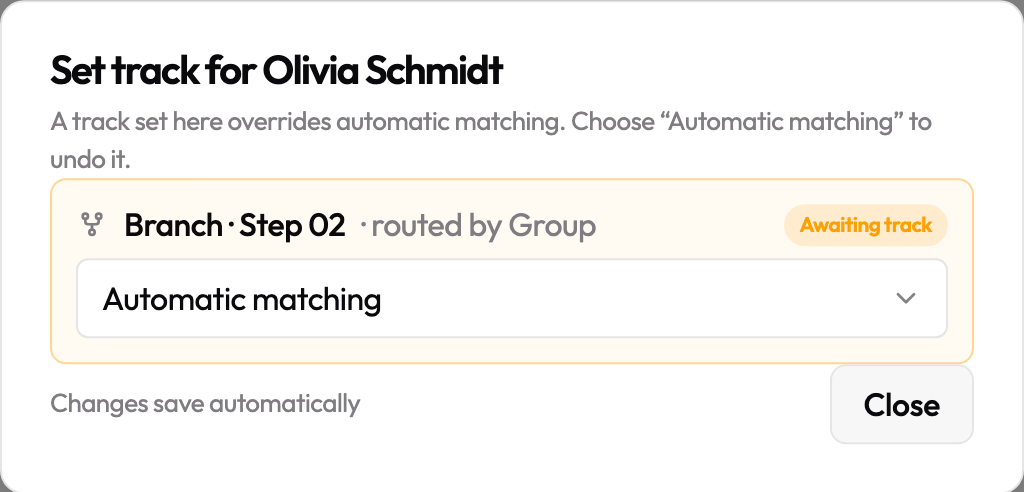
You can also choose a track for anyone else, even if they were already sorted automatically. Open the ⋮ menu on their row, then choose Set track… from it. To undo, choose Automatic matching and EquipEngine goes back to sorting them by your rules.
Other branch options
- Show track name on the learner's Roadmap: volunteers see a "Your track" label above their track's courses.
- Lock learner into chosen track after they start: once someone begins a track's first course, they stay on that track even if they'd now match another.
To remove a track or a whole branch, select it and click the trash icon at the top of its panel. You'll be asked to confirm. Courses on the track are removed from the Flow but stay in your library.